Veeam Update Repository Mirror on IIS for VSA/VIA (Windows Veeam ONE server)
1. Overview
This guide walks through building a local mirror of the Veeam Update Repository (repository.veeam.com/vsa) using Windows Server and IIS only — no Linux or WSL required. It is intended for environments where Veeam Software Appliance (VSA) or Veeam Infrastructure Appliance (VIA) deployments cannot reach the internet directly (OT networks, dark sites, or other closed environments).
The mirror is hosted on the Veeam ONE server because it is already a Windows server with IIS installed, so there is no extra server to build. This guide is best used in air-gapped, federal or dark sites, or wherever the backup server or Enterprise Manager has no internet access.
The process has four stages:
- Download and package the repository content on a Windows machine that has internet access.
- Set up an IIS website on a server inside the closed environment to host that content.
- Hand-carry the packaged files into the closed environment and deploy them to the IIS server.
- Point the VSA/VIA appliance's update configuration at the new local mirror.
2. Prerequisites
- A Windows machine with internet access, to run the download/packaging script (this can be temporary/disposable).
- PowerShell 7 installed on that machine (the script has been tested on PowerShell 7).
- A Windows Server inside the closed environment with the IIS role available.
- Disk space: budget roughly 30 GB for the downloaded content plus another 30 GB for the zip file at time of writing — this will grow with newer Veeam releases.
- A method approved by your organization for carrying media into the closed environment (USB drive, approved transfer process, etc.).
- Correct DNS or hosts-file resolution for whatever hostname you plan to use for the IIS server (e.g.
VeeamRepo).
3. Set up IIS on the Veeam ONE server
IIS is hardened by default and will not serve arbitrary file types for download out of the box. This section configures a dedicated site that safely allows browsing and downloading the mirrored repository files.
3.1 Create the repository folder
-
Create a folder to hold the updates, for example
D:\inetpub\veeamrepo.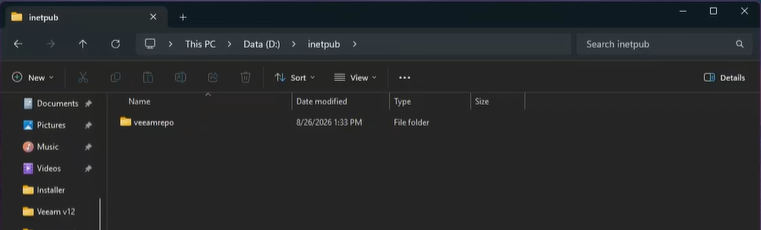
-
Set the NTFS permissions on the
veeamrepofolder to matchC:\inetpub\wwwroot. At minimum, grant the IIS_IUSRS group Read & execute, List folder contents and Read. Make sure the permissions are inherited by child objects.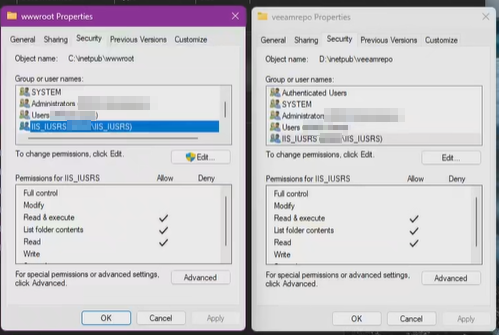
-
Inside
veeamrepo, create a subfolder namedvsa.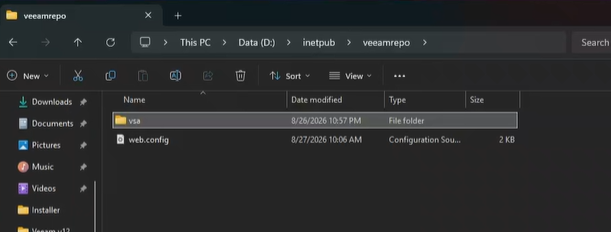
3.2 Create the web.config file
In D:\inetpub\veeamrepo (next to, not inside, the vsa subfolder), create a file named web.config with the content in Appendix 1: web.config.
This configuration denies access to the website's root (which contains the web.config file itself), while explicitly allowing access to the vsa subfolder.
3.3 Create the website in IIS Manager
-
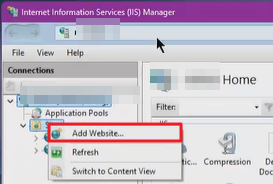
In IIS Manager, right-click Sites and choose Add Website…
-
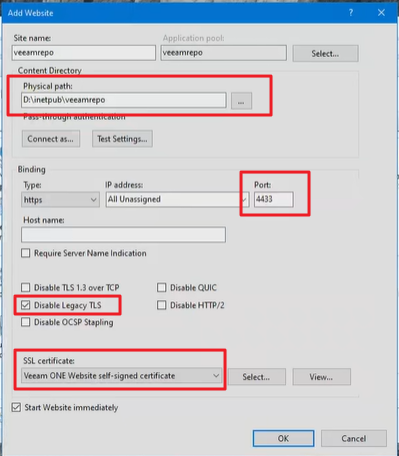
Provide a site name and set the physical path to
D:\inetpub\veeamrepo. Then:- Enter a port number, e.g.
4433(make sure it is unused). - Select an SSL certificate. You may use the certificate used by Veeam ONE (cross-reference it with the VeeamReporter website in IIS).
- Enter a port number, e.g.
-
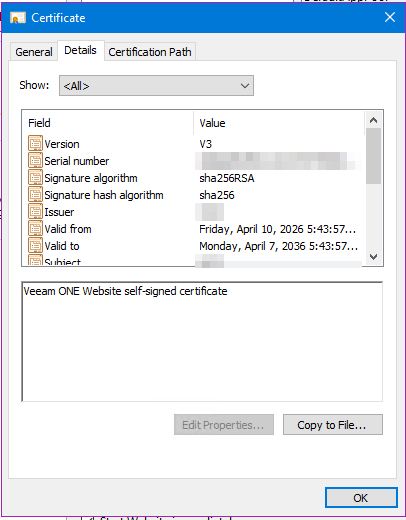
In the same dialog, click View… on the selected certificate, open the Details tab and click Copy to File…
-
Export the certificate as Base-64 encoded X.509 (.CER). Give it a file name and save it, e.g.
veeamrepo-root1.cerinC:\temp. You will select this file on the appliance in section 6.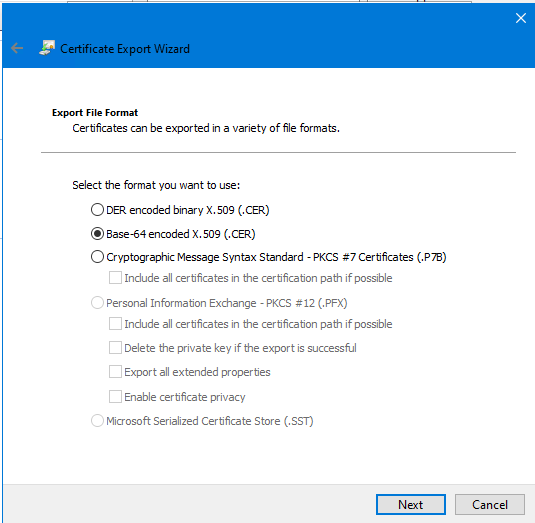
-
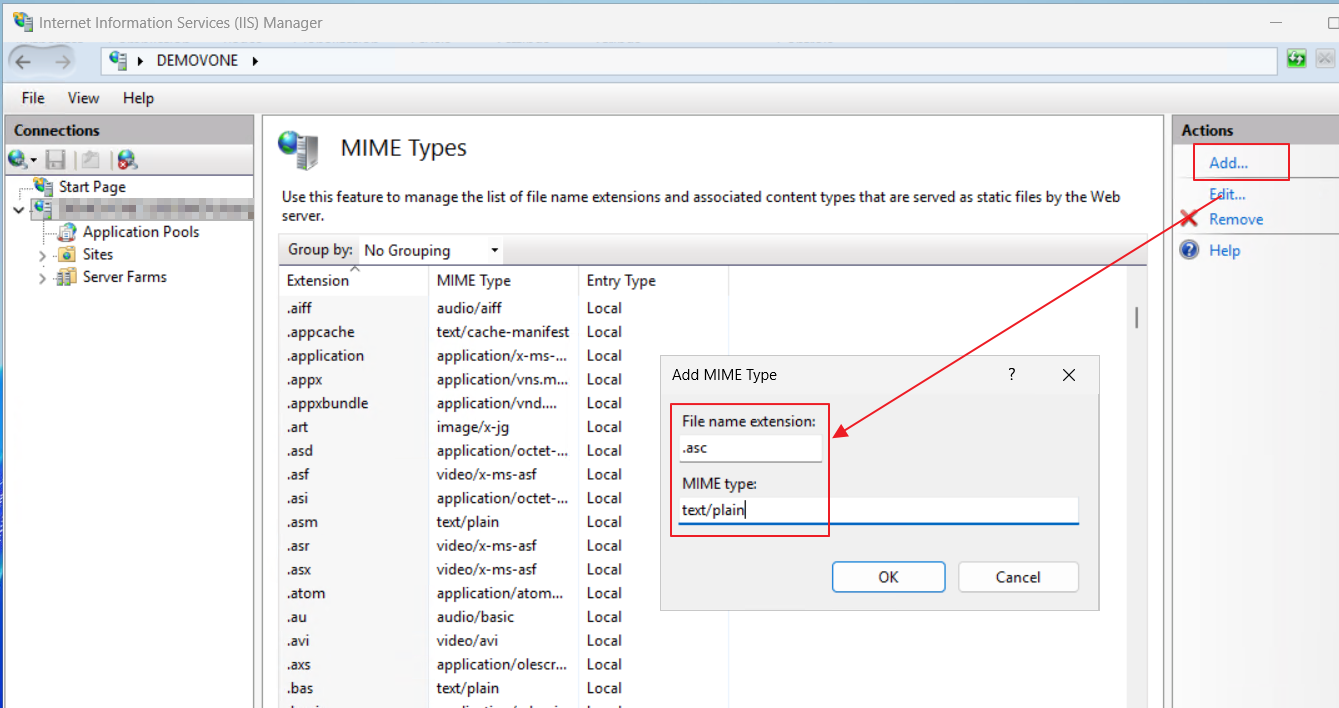
Validate and add MIME types in IIS: select the server and open MIME Types.
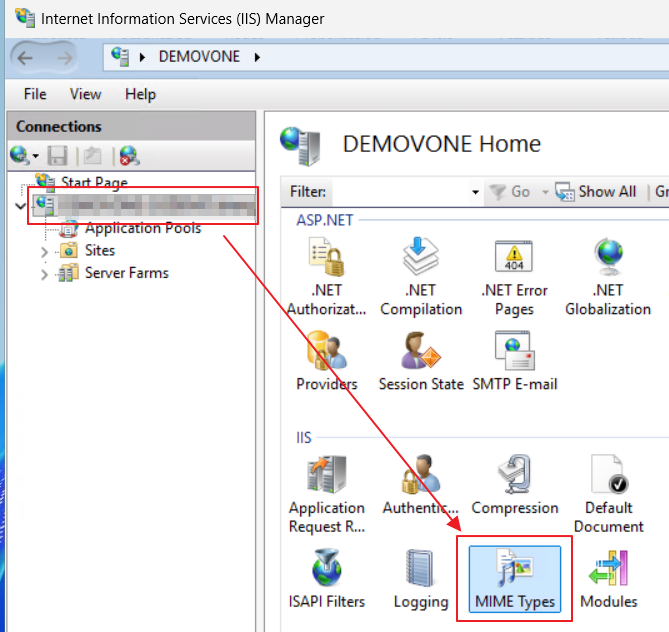
Look for the
.ascfile name extension. If it is not there, click Add… and create it:- File name extension:
.asc - MIME type:
text/plain
- File name extension:
-
Allow IIS to accept the “+” sign in request filtering. Launch PowerShell as Administrator and run the following, replacing
<SiteName>with the site name from step 2:Import-Module WebAdministration Set-WebConfigurationProperty -PSPath 'IIS:\Sites\<SiteName>' -Filter 'system.webServer/security/requestFiltering' -Name 'allowDoubleEscaping' -Value $true
4. Download the updates
Use the download script in Appendix 2: sync-mirrorrepo.ps1 and run it on the machine that has internet access. The script downloads everything under https://repository.veeam.com/vsa and then zips it up into a single file.
- Before running it, right-click the script file → Properties. If an Unblock checkbox is present (Windows marks files transferred from another source as blocked), tick it and click OK. Files that are still blocked can trigger unexpected access restrictions.
-
Edit the script file and set the values for:
Setting What it is [string]$OutRoot = "D:\Downloads\veeamrepo\vsa"Where the downloaded patches are stored. Keep the last folder named vsa: the script zips this folder itself, so the zip then extracts straight into the layout IIS expects.[string]$ZipPath = "D:\Downloads\veeam-vsa.zip"Where the zip file is created. Make sure the output folders exist.
-
Run the script from PowerShell on the download machine. Go to the folder where you saved it and type:
.\sync-mirrorrepo.ps1
5. Copy the updates to the mirror server
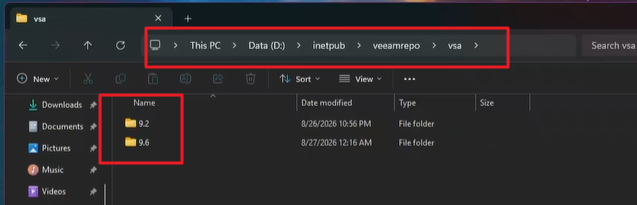
- Unzip
veeam-vsa.zipinto the folder created in section 3.1 (e.g.D:\inetpub\veeamrepo). -
The folder structure should look like the screenshot below. The structure must be kept as it is.
-
Check that the IIS website and the folder structure are in order by browsing to
https://<your_server_fqdn_or_hostname>:4433/vsa. The server is your Veeam ONE server, and the port is the one configured in section 3.3.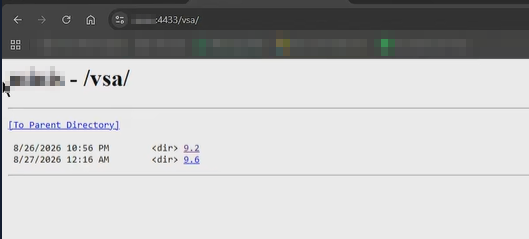
6. Point the appliance at the mirror
Configure the VSA/VIA appliance (or the VBR server, for all managed appliances) to use the new mirror instead of the public Veeam repository.
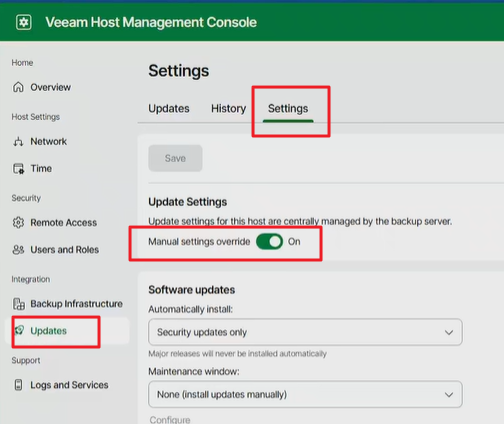
-
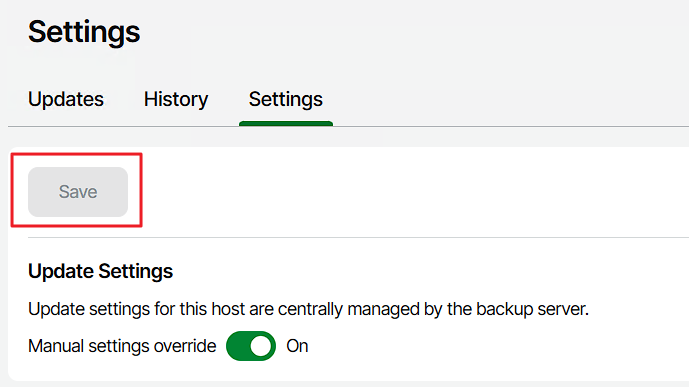
In the VSA/VIA Host Management Console, go to Updates › Settings and turn on Manual settings override.
-
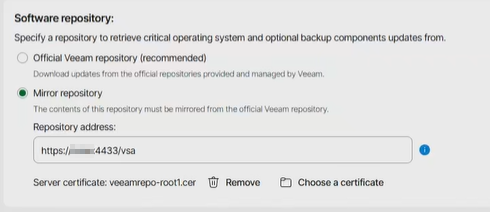
Select Mirror repository as the update source. Enter the URL and choose the certificate exported in section 3.3.
-
Save the configuration, then trigger a check for updates to confirm the appliance can reach and read the mirror.
7. Verify the setup
Run Check for updates and make sure it completes successfully.
8. References
- Veeam Community Resource Hub: “Veeam Update Repository Mirror on IIS (Windows Server)” by Martin Plesner-Jacobsen
- Veeam Help Center: Setting Up Custom / Global Update Configuration
- Related Linux-based mirror approach: Veeam Community Resource Hub post by PeteSteven
Common issues
1. Expired GPG keys
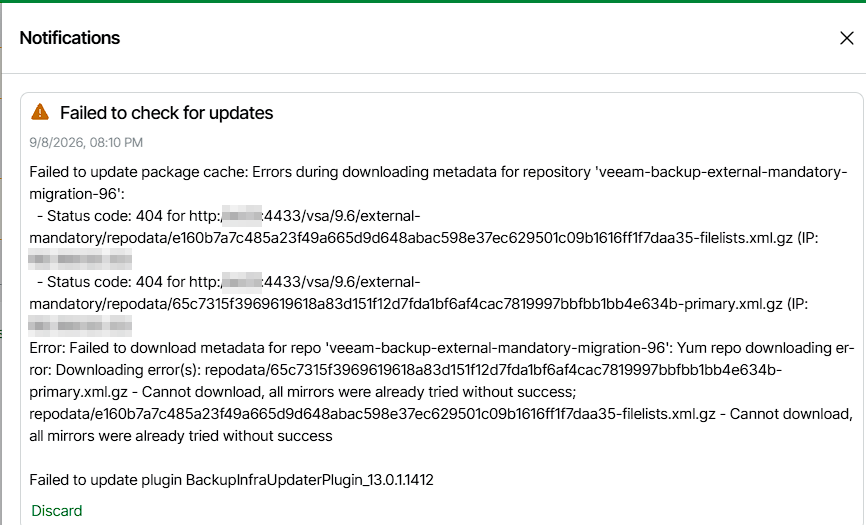
Occasionally the update check may fail, as in the screenshot below. This can be caused by an outdated cache in the XML file that comes from the source.
Resolution/workaround:
- Follow the steps in Veeam KB4834.
- Delete all the downloaded items and download the files again using the download script.
2. Status 404 for .asc files
The update fails with status 404 when loading an .asc file. By default, IIS will not serve a file whose extension is not listed in its MIME types.
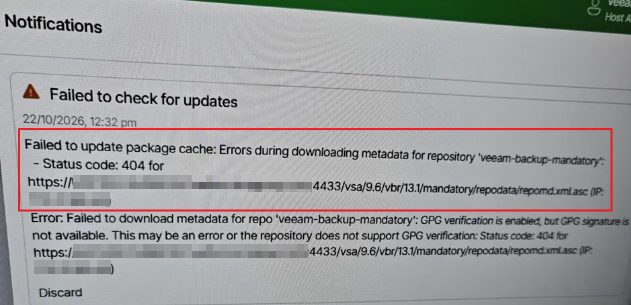
Follow section 3.3, step 5 to add the extension. Afterwards, you can browse to an .asc file to check it downloads — for the error above that is https://<your-site>/vsa/9.6/vbr/13.1/mandatory/repodata/repomd.xml.asc.
3. Downloaded file names contain “%2B”
The files were saved with URL-encoded names (%2B instead of +). Make sure the downloaded files show “+” signs instead of “%2B”. Here is an example of downloaded binaries that contain “%2B”:
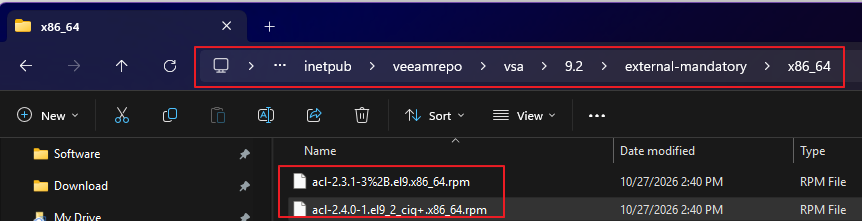
Rename the files manually, replacing “%2B” with “+”. If many files are affected, use PowerShell to do the renaming — see Appendix 3: rename_files.ps1.
Appendix
Download the files directly:
1. web.config
<?xml version="1.0" encoding="UTF-8"?>
<configuration>

  <system.webServer>
    <security>
      <authorization>
        <!-- Deny all users access to the root of the website, since it
             contains this web.config -->
        <remove users="*" roles="" verbs="" />
        <add accessType="Deny" users="*" />
      </authorization>
      <requestFiltering allowDoubleEscaping="true" />
    </security>
    <caching enabled="false" enableKernelCache="false" />
  </system.webServer>

  <location path="vsa" allowOverride="false">
    <system.webServer>
      <directoryBrowse enabled="true" showFlags="Date, Time, Size, Extension" />
      <defaultDocument>
        <files>
          <!-- When requesting a file listing, don't serve up the default
               index.html file if it exists. -->
          <clear />
        </files>
      </defaultDocument>

      <security>
        <authorization>
          <!-- Allow all users access to the Public folder -->
          <remove users="*" roles="" verbs="" />
          <add accessType="Allow" users="*" roles="" />
        </authorization>

        <!-- Unblock all sourcecode related extensions (.cs, .aspx, .mdf)
             and files/folders (web.config, bin) -->
        <requestFiltering>
          <hiddenSegments>
            <clear />
          </hiddenSegments>
          <fileExtensions>
            <clear />
          </fileExtensions>
        </requestFiltering>
      </security>

      <!-- Map all extensions to the same MIME type, so all files can be
           downloaded. -->
      <staticContent>
        <clear />
        <mimeMap fileExtension="*" mimeType="application/octet-stream" />
      </staticContent>
    </system.webServer>
  </location>

</configuration>
2. sync-mirrorrepo.ps1
Show the full script (307 lines)
<#
.SYNOPSIS
  Fetch the entire content (recursively) from https://repository.veeam.com/vsa/
  and zip it after download.

.DESCRIPTION
  - Preserves folder structure locally.
  - Skips files that have already been downloaded with the same size.
  - Retries on temporary network errors.
  - Zips the full local copy into a single .zip at the end.

.PARAMETER BaseUrl
  Root URL of the Veeam update repository (default: https://repository.veeam.com/vsa/)

.PARAMETER OutRoot
  Local root folder for download (default: D:\inetpub\veeamrepo\vsa)

.PARAMETER ZipPath
  Location of the zip file after sync (default: D:\Downloads\veeam-vsa.zip)

.PARAMETER MaxRetries
  Number of attempts on error (default: 3)
#>

[CmdletBinding()]
param(
  [string]$BaseUrl   = "https://repository.veeam.com/vsa/",
  [string]$OutRoot   = "D:\inetpub\veeamrepo\vsa",
  [string]$ZipPath   = "D:\Downloads\veeam-vsa.zip",
  [int]$MaxRetries   = 3
)

# Ensure TLS 1.2 for any HTTPS redirect
 try {
   [System.Net.ServicePointManager]::SecurityProtocol = `
     [System.Net.SecurityProtocolType]::Tls12 `
     -bor [System.Net.SecurityProtocolType]::Tls11 `
     -bor [System.Net.SecurityProtocolType]::Tls
 } catch { }

# Use a fixed User-Agent so directory listing isn't denied
$Global:DefaultHeaders = @{
  "User-Agent" = "PowerShell/7 (Sync-VeeamVAS)"
}

# Helper: Create absolute URI from base + relative
function Join-Uri {
  param(
    [Parameter(Mandatory=$true)][string]$Base,
    [Parameter(Mandatory=$true)][string]$Href
  )
  $baseUri = [System.Uri]$Base
  # Handle absolute, root-relative, and relative
  if ($Href -match '^(http|https)://') {
    return $Href
  } elseif ($Href.StartsWith('/')) {
    return ($baseUri.Scheme + "://" + $baseUri.Host + $Href)
  } else {
    return ([System.Uri]$baseUri, $Href -join '')
  }
}

# Decode percent-encoded characters (e.g. %2B -> +) for safe local filesystem naming.
# IMPORTANT: only applied to the LOCAL file/folder name, never to the URL used for the
# actual HTTP request -- IIS/HTTP.sys expects the request to keep its original encoding.
function Get-DecodedLocalName {
  param([Parameter(Mandatory=$true)][string]$EncodedName)
  return [System.Uri]::UnescapeDataString($EncodedName)
}

# Fetch and parse directory listing into files and folders
function Get-DirectoryItems {
  param([Parameter(Mandatory=$true)][string]$Url)

  Write-Verbose "Fetching listing: $Url"

  $resp = Invoke-WebRequest -Uri $Url -Headers $Global:DefaultHeaders -ErrorAction Stop -MaximumRedirection 10

  $content = $resp.Content


  # Simpler and robust: match only href attributes, not the full <a> tag structure.
  # Note: Use the RegexOptions enum, NOT a string.
  $hrefMatches = [System.Text.RegularExpressions.Regex]::Matches(
    $content,
    'href\s*=\s*"([^"]+)"',
    [System.Text.RegularExpressions.RegexOptions]::IgnoreCase
  )

  $items = @()
  foreach ($m in $hrefMatches) {
    $href = $m.Groups[1].Value

    # Exclude parent, sorting, and fragments
    if ($href -eq "../" -or $href.StartsWith("?") -or $href.StartsWith("#")) { continue }

    $abs = Join-Uri -Base $Url -Href $href

    if ($href.EndsWith('/')) {
      # Folder name = last segment without trailing slash
      $rawName = ($href.TrimEnd('/') -split '/')[-1]
      if ([string]::IsNullOrWhiteSpace($rawName)) { $rawName = $href.TrimEnd('/') }
      $name = Get-DecodedLocalName -EncodedName $rawName
      $items += [pscustomobject]@{ Type="Directory"; Name=$name; Url=$abs }
    } else {
      # File name = last segment
      $rawName = ($href -split '/')[-1]
      # Exclude plain listing files
      if ($rawName -match '^index\.(html?|htm)$') { continue }
      $name = Get-DecodedLocalName -EncodedName $rawName
      $items += [pscustomobject]@{ Type="File"; Name=$name; Url=$abs }
    }
  }

  return $items
}

# HEAD to get Content-Length (may be missing on some endpoints)

function Get-RemoteContentLength {
  param([Parameter(Mandatory=$true)][string]$Url)

  # 1) Try HEAD first
  try {
    $head = Invoke-WebRequest -Uri $Url -Method Head -Headers $Global:DefaultHeaders -ErrorAction Stop

    if ($head -and $head.Headers) {
      $clVals = $head.Headers['Content-Length']     # string or string[]
      $clStr  = $null

      if ($clVals -is [string]) {
        $clStr = $clVals
      } elseif ($clVals -is [System.Array]) {
        if ($clVals.Length -gt 0) { $clStr = $clVals[0] }
      }

      if ($clStr -and ($clStr -match '^\d+$')) {
        return [int64]$clStr
      }
    }
  } catch {
    # ignore and fall back
  }

  # 2) Fallback: GET a single byte and parse Content-Range (e.g., "bytes 0-0/123456")
  try {
    # Clone headers and add Range (and optionally disable compression)
    $rangeHeaders = @{}
    foreach ($kv in $Global:DefaultHeaders.GetEnumerator()) { $rangeHeaders[$kv.Key] = $kv.Value }
    $rangeHeaders['Range'] = 'bytes=0-0'
    # $rangeHeaders['Accept-Encoding'] = 'identity'   # optional

    $resp = Invoke-WebRequest -Uri $Url -Method Get -Headers $rangeHeaders -ErrorAction Stop

    if ($resp -and $resp.Headers) {
      $crVals = $resp.Headers['Content-Range']       # string or string[]
      $crStr  = $null
      if ($crVals -is [string]) {
        $crStr = $crVals
      } elseif ($crVals -is [System.Array]) {
        if ($crVals.Length -gt 0) { $crStr = $crVals[0] }
      }

      if ($crStr -and ($crStr -match '/(\d+)$')) {
        return [int64]$Matches[1]
      }
    }
  } catch {
       # Range not supported or server rejects: return $null
  }

  return $null
}

# Download with retry and skip if local file has identical size
function Download-File {
  param(
    [Parameter(Mandatory=$true)][string]$Url,
    [Parameter(Mandatory=$true)][string]$OutFile,
    [int]$MaxRetries = 3
  )
  $remoteLen = Get-RemoteContentLength -Url $Url
  $dir = Split-Path -Path $OutFile -Parent
  if (-not (Test-Path -LiteralPath $dir)) {
    New-Item -ItemType Directory -Path $dir -Force | Out-Null
  }

  if (Test-Path -LiteralPath $OutFile -PathType Leaf) {
    try {
      $localLen = (Get-Item -LiteralPath $OutFile).Length
      if ($remoteLen -ne $null -and $localLen -eq $remoteLen) {
        Write-Host "SKIP (match size)  $Url -> $OutFile  ($localLen bytes)"
        return
      }
    } catch { }
  }

  $attempt = 0
  while ($attempt -lt $MaxRetries) {
    $attempt++
    try {
      Write-Host "Downloading [$attempt/$MaxRetries] $Url"
      Invoke-WebRequest -Uri $Url -Headers $Global:DefaultHeaders -OutFile $OutFile -ErrorAction Stop
      # Validate size if we know remoteLen
      if ($remoteLen -ne $null) {
        $localLen = (Get-Item -LiteralPath $OutFile).Length
        if ($localLen -ne $remoteLen) {
          throw "Size mismatch: local=$localLen, remote=$remoteLen"
        }
      }
      return
    } catch {
      Write-Warning "Download error ($Url): $($_.Exception.Message)"
      Start-Sleep -Seconds ([math]::Min(15, 3 * $attempt))
      if ($attempt -ge $MaxRetries) {
        Write-Error "Giving up after $MaxRetries attempts: $Url"
      }
    }
  }
}

# Recursively sync from URL to local folder
function Sync-Url {
  param(
    [Parameter(Mandatory=$true)][string]$Url,
    [Parameter(Mandatory=$true)][string]$LocalRoot
  )
  if (-not (Test-Path -LiteralPath $LocalRoot)) {
    New-Item -ItemType Directory -Path $LocalRoot -Force | Out-Null
  }

  $items = Get-DirectoryItems -Url $Url

  # Folders first, then files
  foreach ($d in $items | Where-Object { $_.Type -eq "Directory" }) {
    $subLocal = Join-Path -Path $LocalRoot -ChildPath $d.Name
    Write-Host "==> Folder: $($d.Url)  ->  $subLocal"
    Sync-Url -Url $d.Url -LocalRoot $subLocal
  }
  foreach ($f in $items | Where-Object { $_.Type -eq "File" }) {
    $outFile = Join-Path -Path $LocalRoot -ChildPath $f.Name
    Download-File -Url $f.Url -OutFile $outFile -MaxRetries $MaxRetries
  }
}

# ==== Execution ====
Write-Host "Starting sync from: $BaseUrl"
Write-Host "Local root folder:  $OutRoot"
Sync-Url -Url $BaseUrl -LocalRoot $OutRoot

# === Verify no percent-encoded names remain locally ===
Write-Host "`nVerifying no percent-encoded characters remain in local file/folder names..."
$stillEncoded = Get-ChildItem -Path $OutRoot -Recurse -Force |
    Where-Object { $_.Name -match '%[0-9A-Fa-f]{2}' }

if ($stillEncoded) {
    Write-Warning "Found $($stillEncoded.Count) item(s) still containing percent-encoding (needs manual review):"
    $stillEncoded | Select-Object FullName | Format-Table -AutoSize
} else {
    Write-Host "Clean -- no percent-encoded names found." -ForegroundColor Green
}

# === Zip (user interaction) ===
$caption = "Create ZIP"
$message = "Do you want to create a new zip file at `"$ZipPath`" from `"$OutRoot`"?"
$choices = [System.Management.Automation.Host.ChoiceDescription[]]@(
    (New-Object System.Management.Automation.Host.ChoiceDescription '&Yes', 'Create or overwrite the zip file.'),
    (New-Object System.Management.Automation.Host.ChoiceDescription '&No',  'Skip creating the zip file.')
)

# Default choice: No (index 1)
$decision = $Host.UI.PromptForChoice($caption, $message, $choices, 1)

if ($decision -eq 0) {
    Write-Host "Preparing to compress: $OutRoot -> $ZipPath"
    try {
        $doCompress = $true
        if (Test-Path -LiteralPath $ZipPath) {
            $overwriteCaption = "Overwrite existing ZIP?"
            $overwriteMessage = "A zip file already exists at `"$ZipPath`". Do you want to overwrite it?"
            $overwriteChoices = [System.Management.Automation.Host.ChoiceDescription[]]@(
                (New-Object System.Management.Automation.Host.ChoiceDescription '&Yes', 'Overwrite the existing zip file.'),
                (New-Object System.Management.Automation.Host.ChoiceDescription '&No',  'Keep the existing zip and skip compression.')
            )
            # Default: No (index 1)
            $overwriteDecision = $Host.UI.PromptForChoice($overwriteCaption, $overwriteMessage, $overwriteChoices, 1)

            if ($overwriteDecision -ne 0) {
                Write-Host "Skipping compression: existing zip kept."
                # Exit the zip step but continue the script
                $doCompress = $false
            } else {
                # Remove existing zip so Compress-Archive can create a fresh one
                Remove-Item -LiteralPath $ZipPath -Force
            }
        }
        if ($doCompress) {
            Compress-Archive -Path $OutRoot -DestinationPath $ZipPath -Force
            Write-Host "ZIP created: $ZipPath"
        }

    } catch {
        Write-Error "Could not compress: $($_.Exception.Message)"
    }
} else {
    Write-Host "Skipping compression per user choice."
}
3. rename_files.ps1
$root = 'D:\inetpub\veeamrepo\vsa'   # change to your mirror directory

Get-ChildItem -LiteralPath $root -Recurse -File |
  Where-Object { $_.Name -match '%[0-9A-Fa-f]{2}' } |
  ForEach-Object {
    $newName = [System.Uri]::UnescapeDataString($_.Name)
    $target  = Join-Path $_.DirectoryName $newName
    if (Test-Path -LiteralPath $target) {
      Write-Warning "Exists, skipping: $target"
    } else {
      Rename-Item -LiteralPath $_.FullName -NewName $newName
    }
  }
Credit: this guide is based on “Veeam Update Repository Mirror on IIS (Windows Server)” by Martin Plesner-Jacobsen on the Veeam Community Resource Hub. Thanks for sharing!