Veeam: Backup issue after upgrading vCenter/ESXi
There are times when vSphere admins upgrade their vSphere environment to a newer version, and the next morning the backups of those virtual machines start to fail. The vCenter Server or ESXi host shows as unavailable in the Veeam Backup & Replication (VBR) console, even though everything looks fine in the vSphere Client. What many people overlook is that the upgrade often comes with a new certificate on the vCenter side. When you first add a vCenter Server or ESXi host, VBR saves the thumbprint of its TLS certificate and checks it on every connection to protect you from man-in-the-middle attacks. Once the certificate changes, the thumbprint no longer matches, so VBR stops trusting the server until you tell it the new certificate is OK. Veeam explains this in KB4896, and the good news is that the fix only takes a minute.
Solution: acknowledge the new certificate
The fix is to open the server in the Edit Server wizard and accept the new certificate at the Credentials step. You don't need to remove and re-add the server, so your jobs keep their settings.
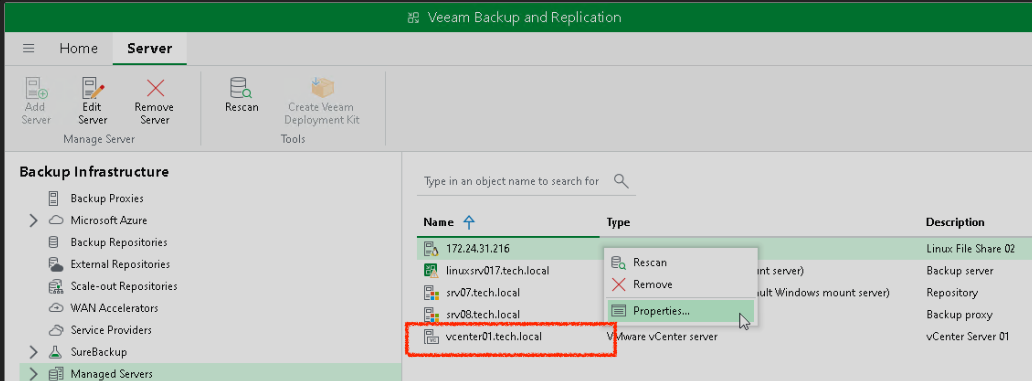
In the Veeam Backup & Replication console, open the Backup Infrastructure view and select Managed Servers in the inventory pane. In the working area, select the vCenter Server or ESXi host and click Edit Server on the ribbon, or right-click the server and select Properties.
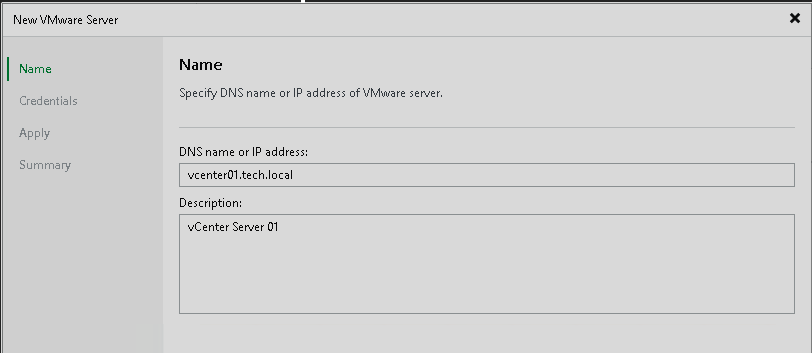
The wizard opens with the same steps you followed when you added the server. At the Name step, the DNS name and description are already filled in. Leave them as they are and click Next.
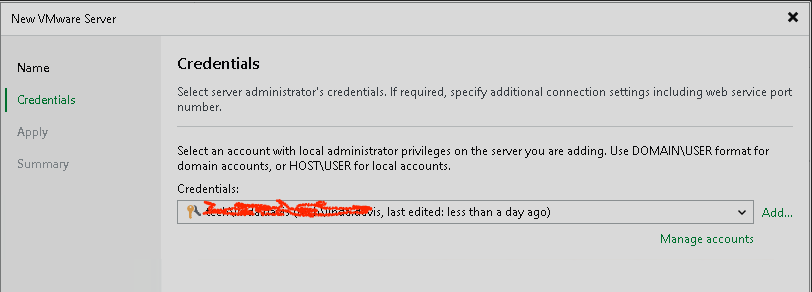
At the Credentials step, keep the existing credentials and click Next.
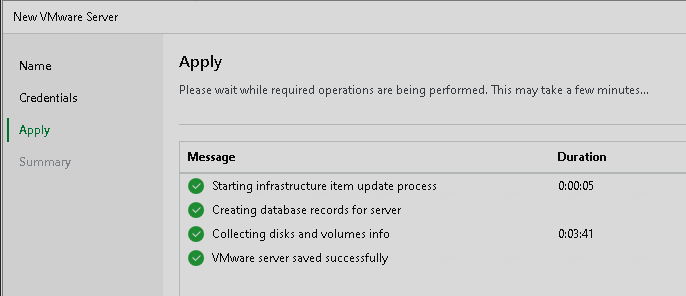
At the Apply step, VBR reconnects to the server and updates its records. Wait until you see VMware server saved successfully, then click Next and Finish to close the wizard.
Verify
- The server no longer shows as unavailable under Managed servers.
- Right-click the server and select Rescan. The rescan should complete without errors.
- Retry the failed jobs, or wait for the next scheduled run, and check that they succeed.
If the server is still unavailable after you acknowledge the certificate, open a case with Veeam Support.
References
- Veeam KB4896: vCenter Server or ESXi Host Becomes Unavailable After Its TLS Certificate Is Replaced
- Veeam Backup & Replication 13 User Guide: Editing Server Settings
- Veeam Backup & Replication 13 User Guide: Specify Credentials (VMware vSphere server)
This fix isn't limited to vSphere. The same steps also work for other hypervisors managed by VBR, such as Nutanix. If a backup starts failing after the hypervisor's certificate changes, open the server with Edit Server, go through the wizard and accept the new certificate.
I hope this saves someone a few minutes the next time certificates get renewed.